cse15l-lab-reports
First Lab Report
table of contents
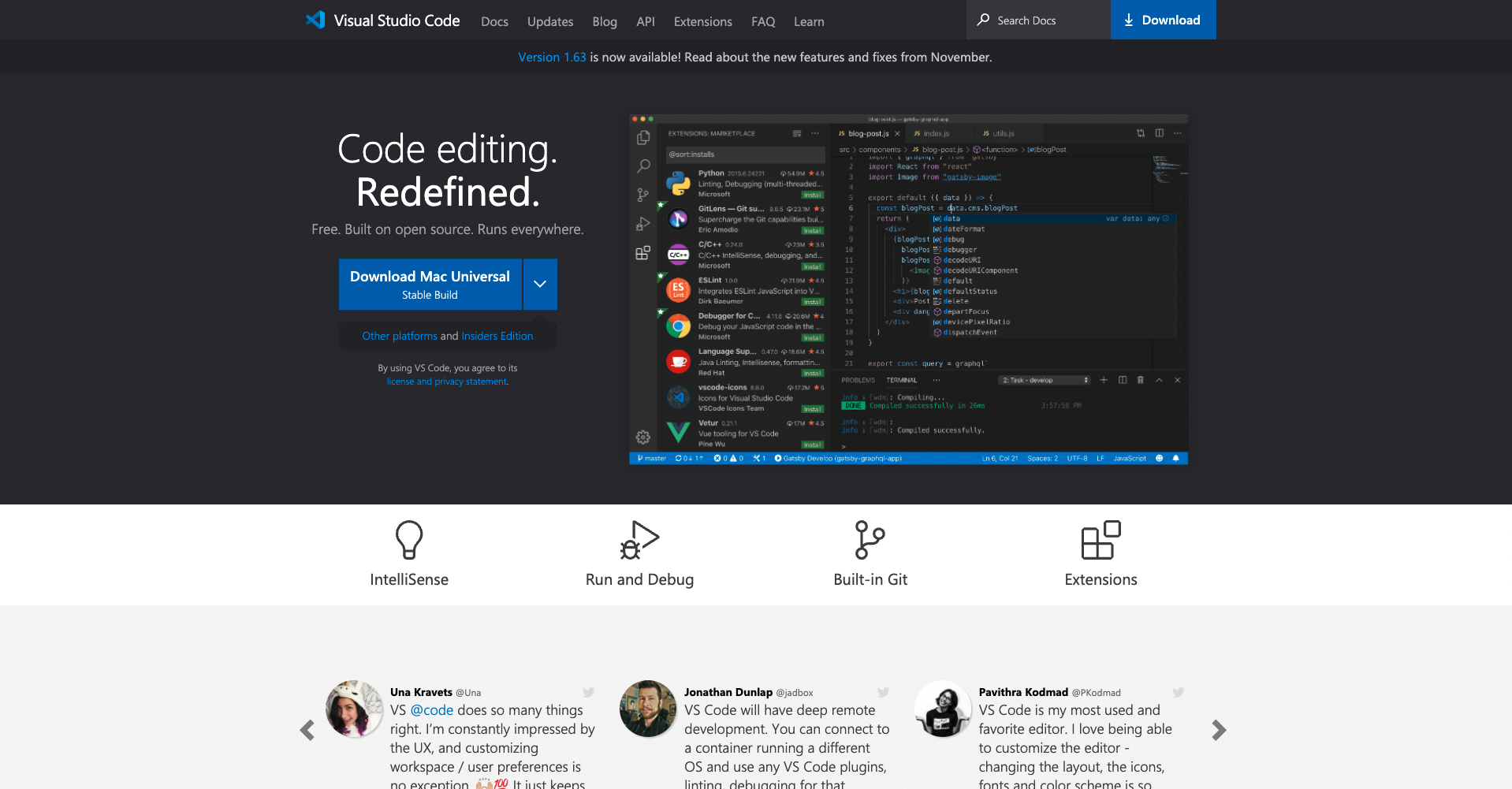
Installing VS Code
Visual Studio Code can be downloaded here.
remotely connecting
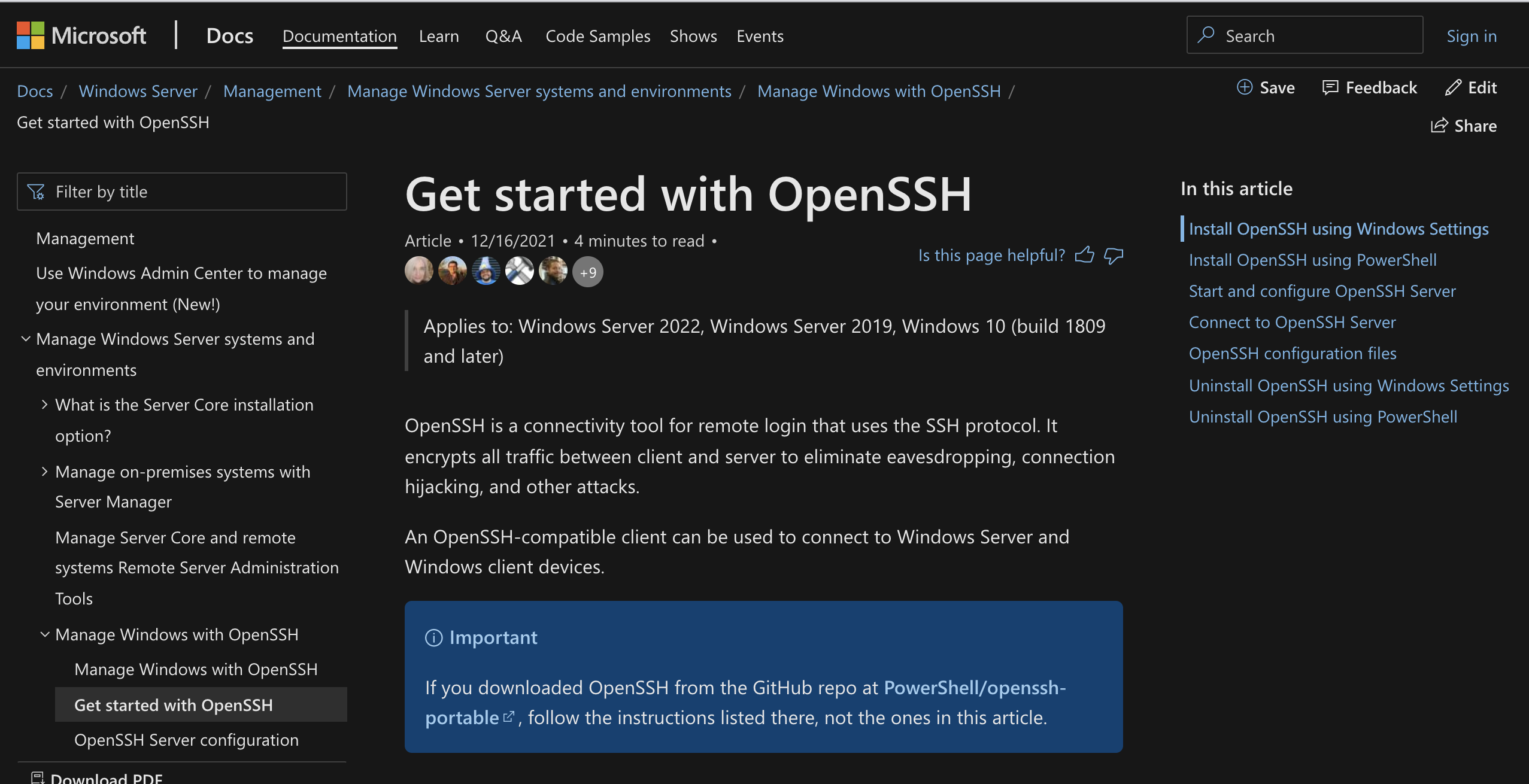
0) If you are on windows operating system, download openSSH for step zero.
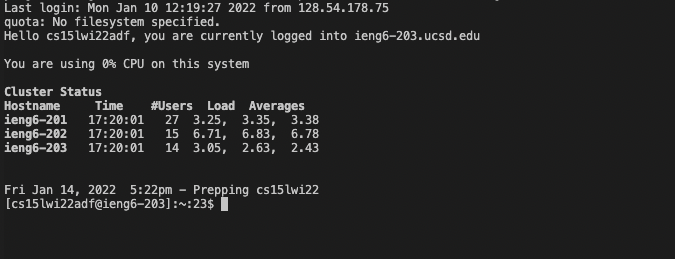
1) Lookup your UCSD acount here. 2) Now it’s time to open the terminal. With the information provided, use the command “ssh” followed by your account name.
ssh cs15lwi22zz@ieng6.ucsd.edu
If this is your First time connecting to the server, type yes if the terminal prompted this question
Are you sure you want to continue connecting (yes/no/[fingerprint])?
After typing your password, you would be able to connect to the server.
trying some commands
The following are some commands for you to try.
- cd
This command changes your current directory. There are a few ways of using the “cd” command.
cd ~
This command above opens your home directory.
cd ~/directory/
This command opens the directory that you specifies. Change the part “~/directory/” to whatever directory you want.
cd
Using cd with no following directory names takes you back to home directory.
- ls
The “ls” command allows you to view the content of your current diretory.
ls -l
ls -a
ls -t
ls -lat
For the commands above, the -l command list the cotent with detailed information. -a command list hidden files and directories. -t command shows items with last edited time.
-
cp
-
cat
moving files with scp
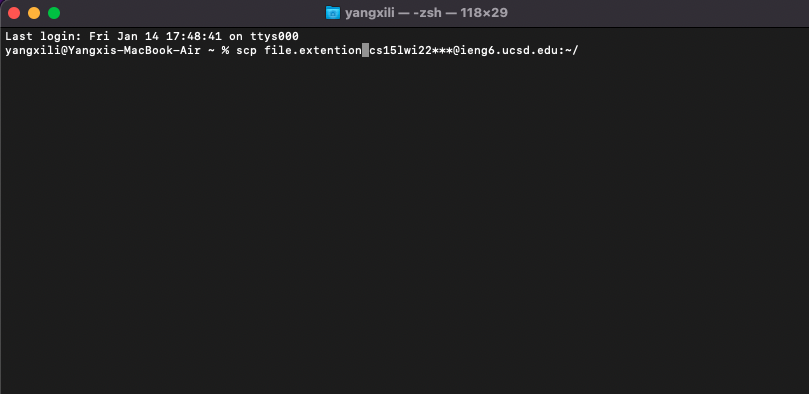
The scp command is used for copying a file from your client to the server. Use the command in your client mode.
setting an ssh key
First of all use the command “ssh-keygen” and select a directory to store the public and private key.
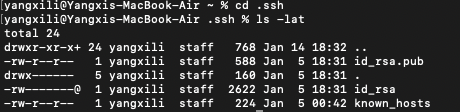
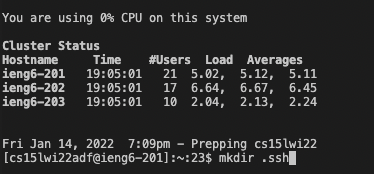
Now we need to create a hidden directory “.ssh” in the server with the command mkdir.
Then use the “scp” command to copy the public key to the server on client. Use the appropriate path for the public key and the path on the server.
scp id_rsa.pub cs15lwi22***@ieng6.ucsd.edu:~/.ssh/authorized_keys
optimizing remote running
There are ways of improve the experience of working with servers.
$ ssh cs15lwi22***@ieng6.ucsd.edu "ls"
Use the commands in quotes after the ssh command will run the command in quotes on the server. Running the command above will have the following result.

$ javac file.java; java file.java
Use semicolons to run multiple commands.
small task
Now we have know two skills that we can use to optimize our running experience on a server. I will show you how much more efficient these techniques are by performing a small task: Running a java file on the server.
- without knowing the techniques
1) we will have to login to our server with the command
$ssh cs15lwi22***@ieng6.ucsd.edu2) then we will need to create a java class for the java file
$javac file_name.java3) finally, we are going to run the file
$java file_name4) this process takes 3 command line and 3 runs for the terminal.
- knowing the techniques
1) we can simply use a single line of command to run a java file on the server. we use the example of the file WhereAmI.java in the following terminal output.
$ssh cs15lwi22***@ieng6.ucsd.edu "javac file_name.java; java file_name"we will get the result like the following after we key in the command.

2) This process takes 1 command and 1 run for the terminal.